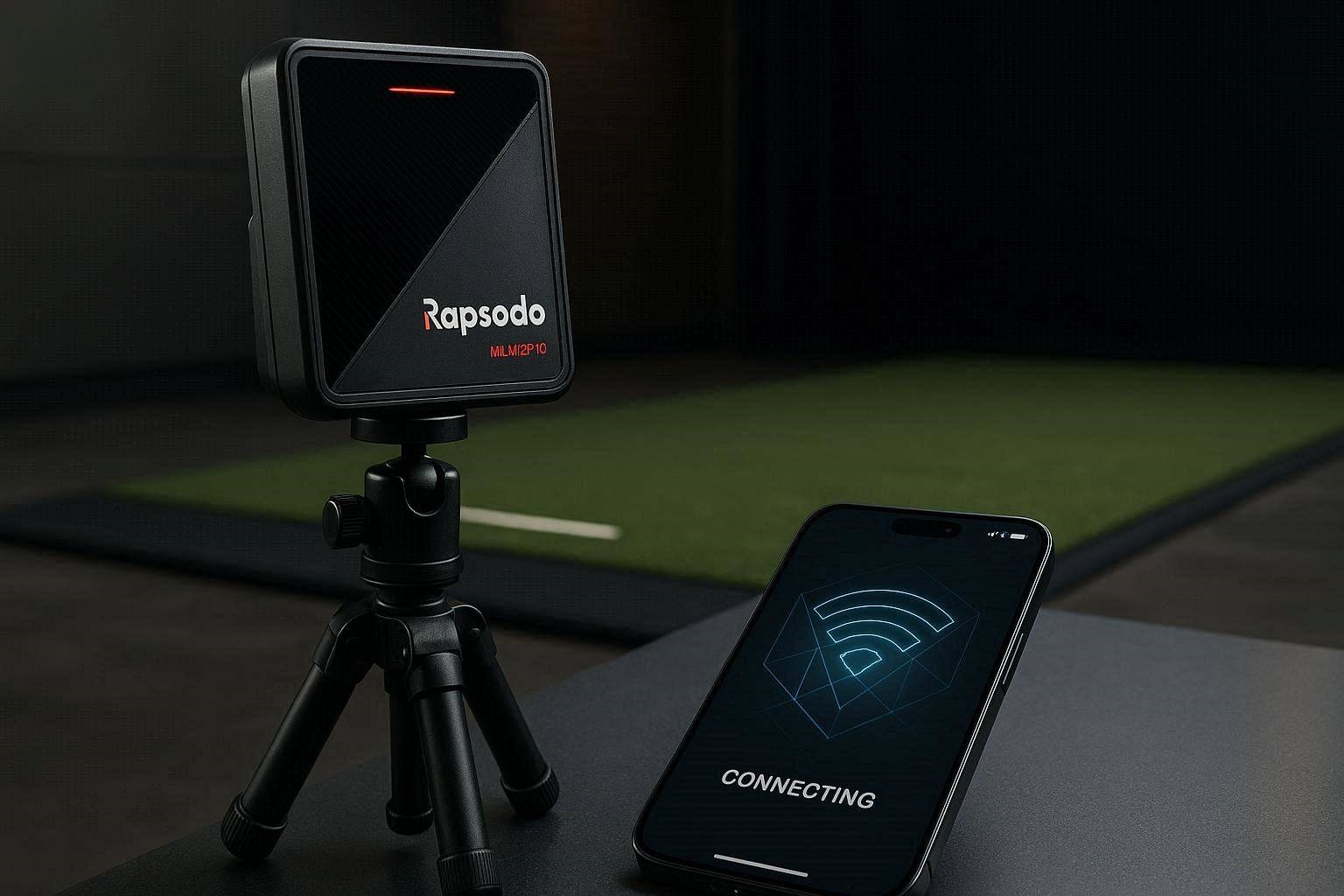
Investing in a portable photometric launch monitor should streamline your game improvement sessions, giving you instant data arrays without the massive footprint of commercial hardware. However, a common roadblock experienced by simulator builders is a sudden, total network timeout during the initialization sequence. When your smartphone or tablet displays a “No MLM2PRO Found” error while the device sits inches away on your hitting mat, you are dealing with a critical hardware-to-software handshake failure. Resolving a persistent Rapsodo MLM2 Pro connection issue requires a systematic optimization of wireless network bands, device pairing handshakes, and mobile operating system permission stacks.
If you are currently staring at a launch monitor stuck on a solid red status light that refuses to populate inside your mobile application, this highly technical guide is your operational manual. We will break down the exact wireless frequencies, firmware states, and Bluetooth telemetry rules required to establish a flawless, zero-latency data pipeline.
The “Quick Answer” / Key Takeaways
- The Status Light Indicator: A solid red light means the unit is fully powered and waiting to discover an active pairing signal, but a total lack of Bluetooth discovery indicates a localized software cache stall or a hidden network restriction.
- The Band Frequency Bottleneck: The internal Wi-Fi chip operates on both 2.4 GHz and 5 GHz channels; if your mobile device is actively connected to a dual-band network with automated band-steering, the handshake will systematically time out.
- Permission Isolation: Both iOS and Android require explicit local network and precise location permissions to clear the optical data path; gating these background permissions blocks the app from recognizing the hardware.
- The Local Hard Reset: Executing a complete micro-controller reset via the physical reset pinhole clears corrupted network cache blocks, forcing the dual-camera array to re-initialize its broadcasting sequence.
1. Deciphering the LED Status Light Telemetry Matrix
Before adjusting any software profiles on your smartphone or editing network configurations, you must accurately diagnose the exact hardware state of the launch monitor. The front-facing LED indicator strip communicates the current operational phase of the internal micro-controller.
When you power on the unit, the device initiates a self-test sequence. Understanding this sequence is vital when dealing with a Rapsodo MLM2 Pro connection issue.
- Flashing Red Light: The internal operating system is loading its system configuration files and initializing the dual optical lenses.
- Solid Red Light: The unit has cleared its internal boot routine and entered standard standby mode. It is broadcasting a low-energy Bluetooth beacon, waiting for an authenticated mobile application to initiate the primary link.
- Flashing Blue Light: The application has successfully discovered the device via Bluetooth and is executing the security handshake.
- Solid Green Light: The wireless bridge is locked, the hitting zone is clear, and the internal global-shutter cameras are armed and ready to track ball flight.
If your device transitions from flashing red to solid red but never initiates a flashing blue light when you launch the connection wizard, the hardware is broadcasting normally, but the receiving mobile application is completely blind to the signal.
2. Resolving the Dual-Band Wi-Fi and Bluetooth Handshake Conflict
The device utilizes a multi-tiered wireless communications stack to transmit its massive 1000+ FPS video data and calculated spin metrics without lag. The initial discovery phase is managed entirely via Bluetooth Low Energy (LE), while the real-time simulation data relies on a local Wi-Fi connection. This dual-connection pipeline creates significant friction if your local network is not properly optimized.
The most common root cause of a persistent Rapsodo MLM2 Pro connection issue is automated band-steering on home routers. Modern mesh networks and dual-band routers combine both 2.4 GHz and 5 GHz frequencies under a single Network Name (SSID). When your smartphone or iPad attempts to connect to the monitor’s internal Wi-Fi chip while remaining tethered to a combined home network, the router will frequently attempt to force the smartphone onto the higher-bandwidth 5 GHz band, while the launch monitor defaults to the long-range 2.4 GHz spectrum.
To isolate and fix this frequency conflict, you must configure a dedicated connection sequence:
- Temporarily disable your home router’s Wi-Fi or step completely out of its physical signal range (such as driving out to an open driving range) to prevent your phone from attempting to jump back to your home internet connection.
- Turn off the launch monitor, wait 10 seconds, and restart it to clear the broadcasting chip.
- Open your smartphone’s system network menu and force it to forget any saved networks that utilize automated band-steering. This forces the mobile operating system to focus exclusively on discovering the localized peer-to-peer connection broadcast by the hardware.
[IMAGE PLACEHOLDER: Technical diagram showcasing a smartphone attempting to link to a launch monitor across conflicting 2.4 GHz and 5 GHz wireless bands + Alt Text: Diagnosing network frequency conflicts causing a Rapsodo MLM2 Pro connection issue]
3. Optimizing Mobile OS Permission Stacks and Cache Files
If the unit continues to sit on a solid red light and cannot be discovered even in a clean wireless environment, the breakdown resides within the background permission layers of your iOS or Android device. Modern mobile operating systems feature aggressive privacy protocols that systematically block unauthenticated local network discovery.
Correcting iOS Network Restrictions
On Apple iPads and iPhones, the app requires explicit access to two critical system components to resolve a Rapsodo MLM2 Pro connection issue: Local Network and Location Services.
Open your device’s system settings app, scroll down to the app list, and select the launch monitor’s operating software. You must manually toggle the “Local Network” switch to the enabled position. Without this setting active, iOS treats the application as sandboxed, blocking it from using the Wi-Fi card to talk to any external hardware.
Furthermore, “Location Services” must be configured to “Always” or “While Using the App,” with the “Precise Location” toggle enabled. Because Bluetooth LE scans can theoretically be used to deduce a user’s physical location, Apple forces location services to be fully active before allowing any background Bluetooth pairing routines to complete.
Clearing the Bluetooth Cache Stack
Over dozens of sessions, the internal Bluetooth stack of your mobile device can accumulate corrupted pairing keys. This results in an infinite loading loop where the phone claims the device is offline.
- Navigate to your phone’s Bluetooth settings menu.
- Locate any older pairings associated with the launch monitor and tap “Forget This Device.”
- Turn off Bluetooth entirely, wait 30 seconds, and then turn it back on.
- Clear the application cache (on Android, navigate to Apps -> Storage -> Clear Cache; on iOS, perform a full restart of the mobile device). This flushes out any stalled network scripts, preparing the app for a clean discovery sequence.
4. Executing a Hard Micro-Controller Circuit Reset
When soft reboots and cache flushes fail to resolve a stubborn Rapsodo MLM2 Pro connection issue, you must perform a hardware-level intervention. The internal processor can occasionally lock up in a corrupted loop, refusing to broadcast its Bluetooth pairing beacons.
On the bottom or side panel of the chassis, adjacent to the primary charging port, sits a tiny, recessed reset pinhole. Locate a fine metal paperclip or a SIM card removal tool. While the unit is powered on and showing a solid red light, gently insert the pin into the hole until you feel a physical micro-switch depress.
Hold the switch down firmly for exactly 10 to 15 seconds. Watch the front LED strip closely. The lights will shut off entirely and then begin an explosive flashing red sequence, indicating that the firmware has cleared its volatile memory banks and is re-initializing the core camera operating systems from scratch. Allow the unit to settle back into a stable, solid red standby state before opening your app to attempt a clean connection wizard sequence.
5. Secondary Device Verification Protocol
If your main phone or tablet still displays the “No MLM2PRO Found” error after a hard reset, you must implement a cross-device troubleshooting matrix. This step isolates whether the breakdown is a distinct hardware failure within the launch monitor’s internal wireless card or a specific software incompatibility localized to your primary phone.
Borrow an alternative device—ideally an iPad if you are experiencing an issue on an Android phone, or a modern Android device if your iPhone is failing. Download a fresh copy of the official operating software from the app store. Turn on the monitor, ensure the solid red light is active, and try to run the connection configuration wizard on the secondary machine.
If the secondary device connects instantly and the LED turns solid green, your launch monitor is functionally perfect. The issue is entirely localized to your primary phone’s hardware profile, cell carrier security restrictions, or custom VPN profiles. If you have an active VPN (such as NordVPN or ExpressVPN) running on your personal phone, it will encrypt and reroute all local data traffic, rendering the phone completely incapable of discovering a localized launch monitor. You must disable all active VPNs and cellular data assist features before launching the application.
6. The Affiliate / Premium Bay Optimization Section
Experiencing wireless timeouts or dropped shots right in the middle of a practice session highlights the importance of structural stability and high-quality construction within an indoor golf studio. If you are constantly forcing your mobile device to reconnect because your hitting environment lacks robust power arrays and structural consistency, your overall simulator accuracy will degrade rapidly.
To convert a basic, finicky portable setup into an elite training space, you must secure a permanent, ultra-stable physical foundation. We strongly recommend ditching flimsy consumer tripods that shift or vibrate when an iron impacts the turf. Upgrade your hitting station with a professional enclosure and modular flooring from industry-defining structural designers like Carl’s Place or The Indoor Golf Shop (both accessible via premium tracking consumer networks like ShareASale or PartnerStack). Sourcing your bays through these authorized channels ensures you get heavy-duty, protective launch monitor alignment stands that lock your monitor into the perfect spatial coordinates.
Furthermore, a premium hitting mat—such as the Fiberbuilt Grass Series Studio Mat or a TrueStrike Gel Section hitting strip—absorbs the kinetic impact of your swing cleanly. Cheap range mats create violent ground vibrations that shake adjacent tech hardware, causing internal gyro sensors to reset and drop their wireless connections. By pairing your optimized, hard-reset launch monitor with a Carl’s Place premium enclosure and a cushioned, non-slip Fiberbuilt hitting surface, you eliminate physical vibrations and electronic dropped signals simultaneously, turning a frustrating garage space into a flawless golf lab.
[IMAGE PLACEHOLDER: A professional indoor simulator bay with a perfectly positioned, hardwired launch monitor resting on a custom alignment platform + Alt Text: Eliminating structural vibrations and optimizing a Rapsodo MLM2 Pro connection issue with premium simulator hardware]
7. Firmware Calibration and Local Hotspot Mode Synchronization
The final, definitive phase of eliminating a Rapsodo MLM2 Pro connection issue involves locking down your wireless routing profile using the device’s native “Local Hotspot Mode.” By bypassing your home router entirely, you can create a direct, un-throttled data link between the launch monitor and your mobile hardware.
Once you have successfully executed an initial connection (even on a secondary device), immediately check for firmware updates. Rapsodo consistently releases system firmware patches to optimize network card stability and fix pairing timeouts on newer operating systems. Never skip a firmware update prompt; these downloads rewrite the internal Wi-Fi communication rules on the device’s micro-chip.
To configure Local Hotspot Mode for absolute field stability:
- In the device connection settings screen, select “Local Hotspot Mode” instead of “Connection via Home Router.”
- The launch monitor will act as its own independent router, broadcasting a private network SSID (usually labeled with the serial number of the unit).
- Open your phone’s Wi-Fi menu, look for the unique network name generated by the monitor, and type in the factory authentication password provided in your documentation.
- Once paired, your phone will display a warning stating: “This network has no internet connection.” This is correct and intentional. The phone is now dedicated 100% to reading the ultra-dense data packets coming from the global-shutter cameras with zero background bandwidth sharing.
Preventative Lens and Battery Maintenance Checklist
To ensure your newly calibrated portable launch monitor remains free from sudden data drops or mechanical dropouts, follow this long-term care routine:
- The 20% Battery Threshold: The internal lithium-ion battery powers the high-speed cameras and the wireless transmission card. When the battery level drops below 20%, the micro-controller will automatically throttle power to the internal Wi-Fi antenna to preserve baseline processing functions. This power restriction will immediately trigger a Rapsodo MLM2 Pro connection issue. Always connect your unit to a high-output, 5V 2A wall charger between sessions to guarantee the wireless card has maximum voltage for data broadcasting.
- The Rear Lens Purge: Static electricity generated by your swing can draw micro-fine nylon dust from your hitting mat onto the rear camera glass. If the camera lens becomes obscured by dust, the image processor takes longer to confirm ball tracking parameters, which can create a data lag that mimics a network timeout. Use a clean can of compressed air to spray the optical windows clean before every simulator session.