
Building a custom PC for GSPro 4K rendering is one of the most critical investments you will make for your indoor golf simulator bay. If you are projecting a massive, high-definition image onto a premium impact screen, relying on underpowered hardware will instantly ruin the immersion with skipped frames and visual stutter during your swing. In 2026, the baseline requirements for simulator software have shifted dramatically, demanding robust components that can process real-time ball physics, high-speed camera data, and ultra-high-resolution textures simultaneously.
Quick Answer / Key Takeaways:
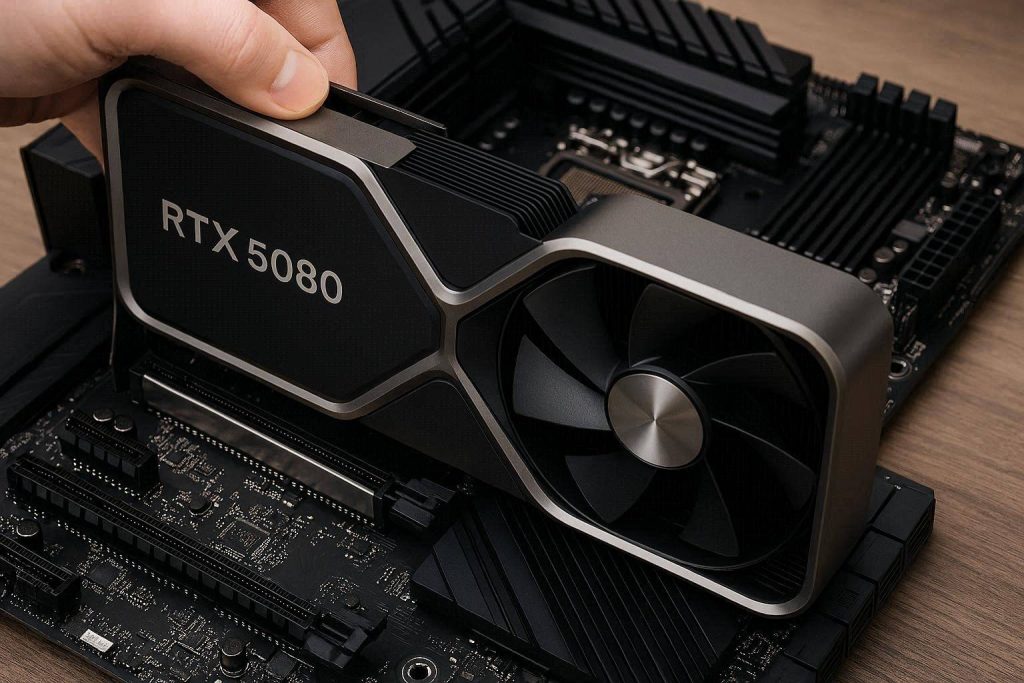
- The GPU is the bottleneck: GSPro is overwhelmingly GPU-bound. For a flawless 4K Ultra experience at 60+ fps, an NVIDIA RTX 4070 is the absolute baseline, while the RTX 5070 Ti or RTX 5080 represent the new premium standard.
- RAM requirements have doubled: 16GB is no longer sufficient. 32GB of DDR5 memory at 6000MHz is the mandatory minimum when running swing cameras, OBS, or launch monitor software concurrently.
- Avoid AMD graphics cards: While GSPro technically supports AMD, other major platforms like FSX Play and Trackman strictly require NVIDIA hardware. Build around NVIDIA to ensure long-term cross-platform compatibility.
- Storage speed dictates course loading: A 1TB NVMe SSD is the minimum requirement. Slower SATA drives will cause agonizing wait times when loading massive 1GB+ community-designed lidar courses.
- Thermal management is crucial: Simulator PCs run at high loads for hours in confined spaces. Liquid-cooled CPUs and high-airflow cases are non-negotiable.
Why 4K Golf Simulation is Brutal on Hardware
Unlike traditional desktop gaming where your monitor is two feet away from your eyes, a golf simulator requires projecting an image onto a massive impact screen spanning 10 to 16 feet wide. When an image is stretched to that physical scale, every single dropped frame, screen tear, or low-resolution texture becomes glaringly obvious. When you execute a 160 mph ball speed drive, the software must instantly calculate the launch angle, backspin, and side spin, then translate those physics into a seamless 3D ball flight across a complex virtual environment.
The Unity Engine Architecture
GSPro is built on the Unity gaming engine, which prioritizes raw graphical processing power over central processing efficiency. When you push the resolution to native 4K (3840 x 2160), the computer is calculating four times the pixel count of standard 1080p HD. Every tree leaf, dynamic water reflection, and blade of grass requires massive graphical rendering bandwidth. If your hardware cannot keep up, the system will stutter at the exact moment of club impact, throwing off your rhythm and destroying the realism of the practice session.
The Graphics Card (GPU): The Heart of a Custom PC for GSPro 4K Rendering
When budgeting for your simulator build, the graphics card should consume at least forty to fifty percent of your total expenditure. The GPU handles all the heavy lifting for environmental rendering, lighting, and shadow processing.
VRAM Minimums for 2026
Video Random Access Memory (VRAM) is the temporary storage your graphics card uses to hold image data before pushing it to your projector. In 2026, 4K textures are incredibly dense. If your GPU runs out of VRAM, it has to fetch data from the slower system RAM, resulting in a catastrophic frame rate drop. For 4K GSPro rendering, 12GB of VRAM is the absolute minimum, but 16GB is highly recommended to future-proof your setup against increasingly detailed community courses.
NVIDIA vs. AMD: The Compatibility Trap
While you might find a competitively priced AMD Radeon card, you must strictly avoid them for dedicated golf simulators. GSPro natively supports AMD, but the wider golf simulator ecosystem does not. FSX Play (used for Bushnell and Foresight launch monitors) and Trackman Virtual Golf 3 aggressively restrict their software to NVIDIA architecture. If you ever plan to switch launch monitors or run dual software, an AMD card will brick your entire upgrade path. Stick exclusively to the NVIDIA RTX 4000 or RTX 5000 series.
The Central Processing Unit (CPU): Feeding the GPU
While the graphics card draws the picture, the CPU calculates the math. When your launch monitor captures the club data, it sends those raw numbers to the CPU. The CPU crunches the physics algorithm and tells the GPU exactly where the ball should be on the screen.
Single-Core Speed vs. Multi-Core Performance
Golf simulator software generally favors high single-core clock speeds rather than massive multi-core server processors. However, modern simulator bays in 2026 are complex ecosystems. You are rarely just running GSPro. You are likely running the base launch monitor application (like Uneekor View or Foresight FSX), dual high-speed swing cameras recording at 120 frames per second, and potentially OBS Studio to record or stream your sessions.
Because of this intense multitasking, an Intel Core i7 (such as the 14th Gen or the new Core Ultra 7 265F) or an AMD Ryzen 7 9700X is the sweet spot. These processors provide the necessary single-core speed for ball physics while reserving enough cores to handle background video processing without bottlenecking the system.
System Memory (RAM) Allocation
For years, 16GB of RAM was the gold standard for gaming computers. In 2026, building a custom PC for GSPro 4K rendering requires stepping up to 32GB of DDR5 memory.
Why 32GB DDR5 is the New Standard
GSPro itself will utilize around 10GB to 14GB of RAM during heavy 4K gameplay. The moment you introduce swing cameras, the memory demand spikes violently. High-speed cameras dump massive amounts of uncompressed video data into your system RAM for temporary processing before writing to the storage drive. If you only have 16GB of RAM, the system will choke during your swing, causing the cameras to drop frames or the GSPro ball flight to delay. Opt for 32GB of DDR5 running at 6000MHz or higher to ensure data flows flawlessly between your CPU and storage.
Crucial’s Guide to DDR5 Memory Speeds and Latency for High-End PC Builds.
NVMe Storage: The Hidden Cause of Course Loading Lag
Storage is often the most overlooked component in a golf simulator build. GSPro relies heavily on community-developed courses, created using complex Lidar data to replicate real-world topography down to the inch. Because of this extreme accuracy, a single 18-hole course file can easily exceed 1GB in size.
When you select a course, the computer must pull that massive file from your storage drive and load it into the system memory. If you are using an older SATA SSD or a mechanical hard drive, you will be staring at a loading screen for minutes. You must equip your system with a Gen 4 or Gen 5 NVMe M.2 SSD. A 1TB drive is the bare minimum, but given that avid players easily download over 200 courses, a 2TB NVMe drive is the practical recommendation to prevent storage anxiety.
The Premium Hardware Upgrade
If you are investing upwards of $10,000 into a premium launch monitor and a true 4K laser projector, bottlenecking the entire visual experience with a budget PC is a severe misallocation of funds. To guarantee a flawless 4K Ultra experience with maxed-out settings, locked at a stable 60 fps (or up to 100 fps on Trackman VG3), you need enthusiast-grade components.
Instead of dealing with the headache of parts compatibility, wiring, and thermal paste, the ultimate permanent fix is upgrading to a pre-built, simulator-specific powerhouse. The SurfThing SG3-5802 RTX 5080 configuration is currently the industry benchmark for zero-compromise simulator bays. SurfThing machines are stress-tested specifically for software like GSPro and Trackman, ensuring they do not suffer from the thermal throttling commonly found in mass-market gaming PCs.
If you prefer to source the components yourself for a dedicated build, skip the standard consumer electronics stores. Use dedicated professional hardware networks like B&H Photo Video to source an Intel Core Ultra 7 processor and a premium motherboard. For specialized networking gear (which is critical if you are running multiple PoE swing cameras), look to Ubiquiti networks to ensure your launch monitor never drops its connection.
[INTERNAL LINK: The Ultimate Guide to PoE Switch Networking for Golf Simulator Cameras.]
Power Supply and Thermal Management
Golf simulator PCs are subjected to unique environmental stress. Unlike a desk PC that gets turned off after a gaming session, simulator PCs are often hidden away in custom cabinets, audio-visual racks, or placed on carpeted floors in garages that lack standard climate control.
The 850W Minimum Rule
High-end GPUs like the RTX 4080 or RTX 5080 pull massive amounts of electricity. A momentary spike in power draw (called a transient spike) can easily trip a weak power supply, causing your entire simulator to shut down right in the middle of a swing. An 850W Gold-rated Power Supply Unit (PSU) from a reputable brand like Corsair or Seasonic is mandatory. If you are running an RTX 4090 or 5090, step up to a 1000W unit to ensure safe overhead.
Liquid Cooling vs. Air Cooling
Because the PC will likely be running for hours at maximum graphical load while you play 18 holes, thermal management is paramount. A high-quality All-In-One (AIO) liquid cooler with a 280mm or 360mm radiator will keep your CPU temperatures stable, preventing the processor from slowing itself down (thermal throttling) to prevent overheating. Pair this with a high-airflow case featuring a mesh front panel. Never put your simulator PC inside a closed wooden cabinet without installing dedicated exhaust fans in the cabinetry itself.
[IMAGE PLACEHOLDER: An internal view of a PC case showing a 360mm liquid cooling radiator and glowing RAM sticks. + Thermal management cooling system for a custom PC for GSPro 4K rendering.]
Operating System and Background Process Optimization
Hardware is only half the battle; software optimization is equally vital. GSPro is strictly a Windows application. Do not attempt to use Apple hardware or run Parallels on a Mac; the graphical translation layers will introduce severe latency. Windows 11 64-bit is the required standard for 2026 builds to properly utilize the scheduling architecture of modern Intel and AMD processors.
Disabling Windows Defender Real-Time Scanning
One of the most common causes of micro-stuttering in GSPro is Windows Defender interfering with the software’s read/write processes. Because GSPro constantly streams environmental data from the SSD as the ball flies down the fairway, aggressive real-time virus scanning can momentarily pause the data flow. It is highly recommended to go into your Windows Security settings and add the entire GSPro installation folder to the “Exclusions” list. This prevents Windows from scanning the game files during your swing, instantly resolving many unexplained graphical hitches.
Furthermore, ensure your NVIDIA Control Panel is optimized. Navigate to the 3D Settings, find the Power Management Mode, and change it from “Normal” to “Prefer Maximum Performance.” This prevents the graphics card from attempting to downclock itself to save power during slower moments on the virtual tee box, ensuring instant graphical response when you strike the ball.
Quick-Action Simulator PC Checklist
Before launching your first round in 4K, run through this final system check to ensure maximum stability:
- Verify that your display output is plugged directly into the NVIDIA graphics card, not the motherboard’s HDMI port.
- Confirm in the BIOS that your DDR5 RAM has XMP or EXPO enabled so it actually runs at the advertised 6000MHz speed.
- Add the GSPro folder to your Windows Defender exclusion list to prevent background scanning.
- Update your NVIDIA drivers to the latest “Studio” or “Game Ready” version, performing a clean install to wipe old data.
- Set your Windows power plan to “High Performance” to prevent the CPU from parking cores during your session.